Export invoice line items with Datamolino
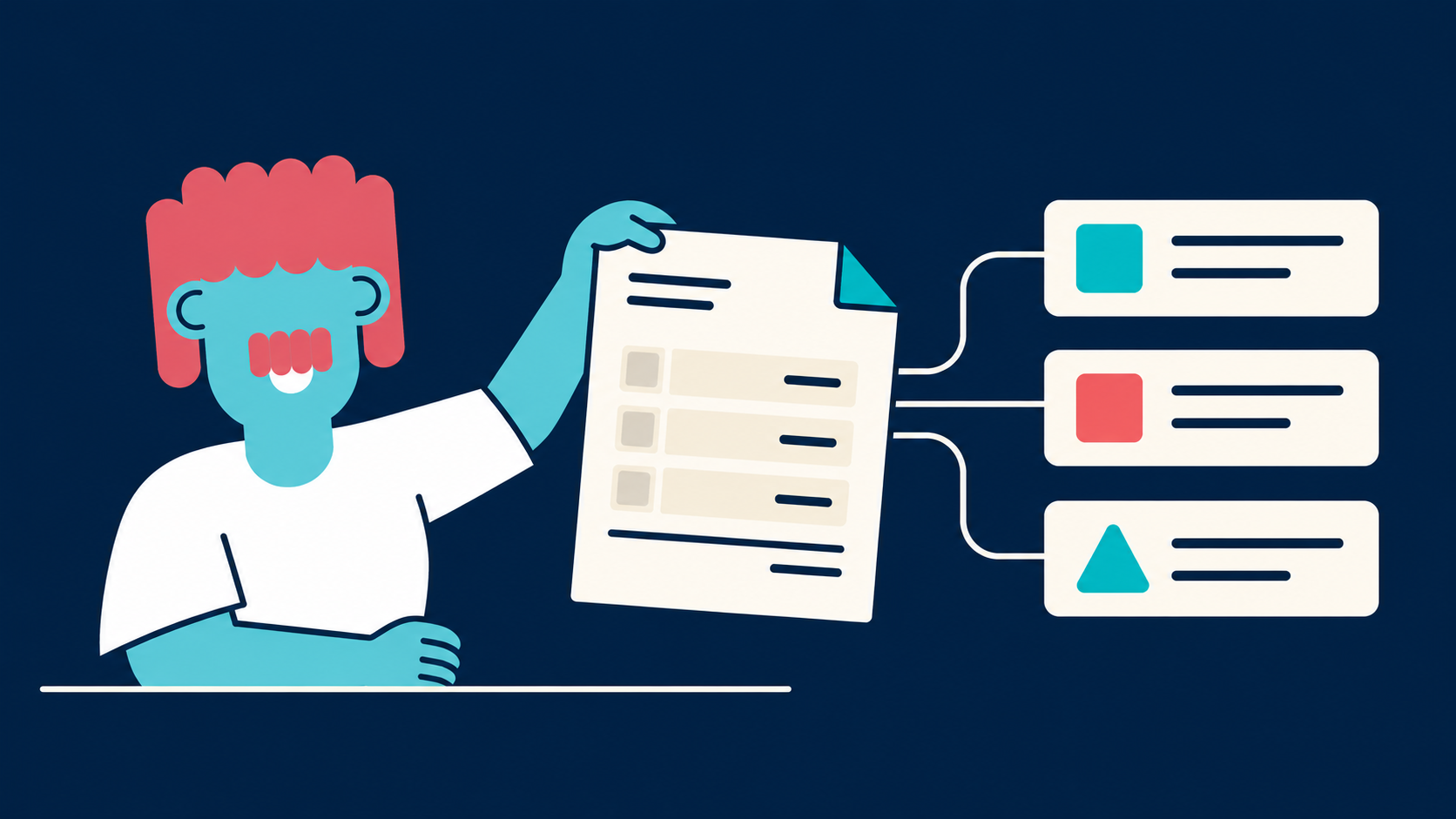
Review individual invoice lines, give each one its account and tax code, and export the full detail to your accounting software.
Watch tutorialSee how fixed amounts and percentages split one bill into coded lines, preview the result and save the split for every new bill from the supplier.
Open the bill, click Bill Split and choose Create New Rule, or pick a rule you saved earlier.
Click Add Fixed Amount. Enter a description and the total, then choose the ledger account and tax code. Tracking is optional.
Click Add Percentage Amount and enter the percentage of what remains after fixed amounts, with its coding.
Check the Line Items Preview: the remainder line first, then your split lines and the invoice total.
Click Apply Once for a one-off split, or name the rule and click Save Rule & Apply. Switch on Apply to the supplier’s future invoices automatically to split every new bill from them.
Confirm the Bill Split Rules Active label and review the coded lines before export.
Some bills cover more than one cost. With Bill Split, one bill becomes the coded lines you need, and it can do the same for every new bill from that supplier.
Here’s how the split works. Fixed amounts come off the invoice total first. Percentages then share what’s left. Anything that remains becomes one more line, coded with the supplier’s default settings.
Open the bill and click Bill Split. Then choose Create New Rule, or pick a rule you’ve saved before.
Start with a fixed amount. Add a description and the total, then choose the ledger account and tax code. Tracking categories are optional.
Next, add a percentage of what’s left. Here, half of the remaining £2,400 goes to the design studio.
The preview shows the remainder line first, then your split lines and the invoice total. It’s worth a quick check before you apply it.
For a one-off split, click Apply Once. Want to reuse it? Name the rule and save it. Switch on the option for this supplier’s future invoices, and every new bill from them is split the same way.
So when next month’s bill from Calder arrives, it’s split and coded the same way, automatically.
Back on this bill, you’ll see Bill Split Rules Active, and the lines are coded and ready to review before export.
That’s Bill Split. One shared bill becomes correctly coded lines, and once you’ve saved the split, every new bill from that supplier is divided the same way, without retyping.
You’ll find a step-by-step guide in the Datamolino Help Centre.
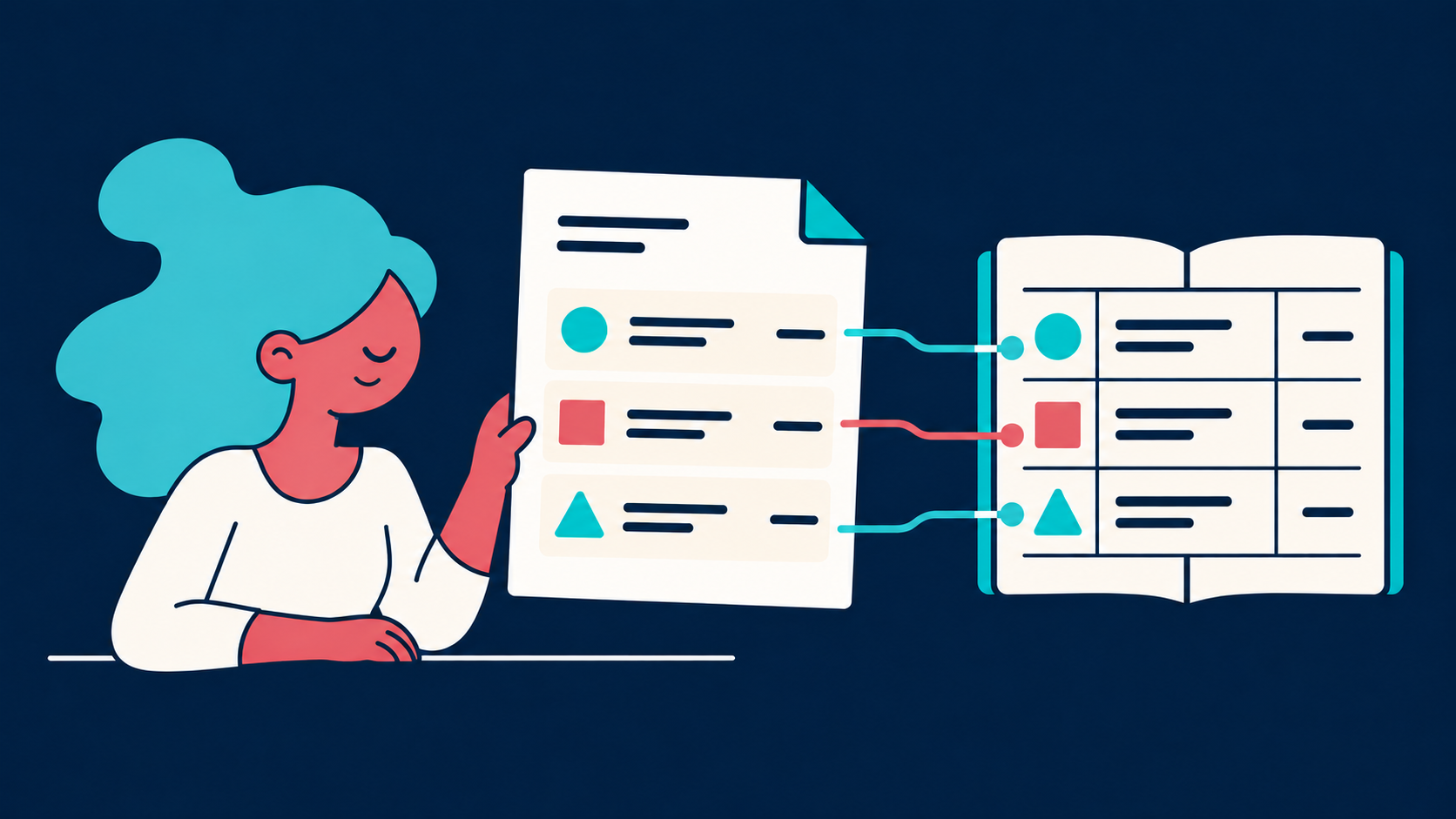
Review individual invoice lines, give each one its account and tax code, and export the full detail to your accounting software.
Watch tutorialSet up a keyword rule for recurring words in line descriptions, test it, and let it code matching lines automatically.
Watch tutorialFind the folder settings that save time on every document: coding defaults, workflow preferences, email import and who works in the folder.
Watch tutorial