What is accounts payable? The process, step by step
Accounts payable (AP) is the money your business owes suppliers for goods and services it has received but not yet paid for, and the process of recording and paying those bills. The accounts payable process runs from receiving a supplier invoice through checking, coding, approving, paying and reconciling it.
What are the steps in the accounts payable process?
Receive the invoice, capture its details, check it, code it, approve it, record it as a bill, pay it and reconcile the payment against the bank statement. Small businesses often combine several steps, but each one still happens.
What accounts payable means
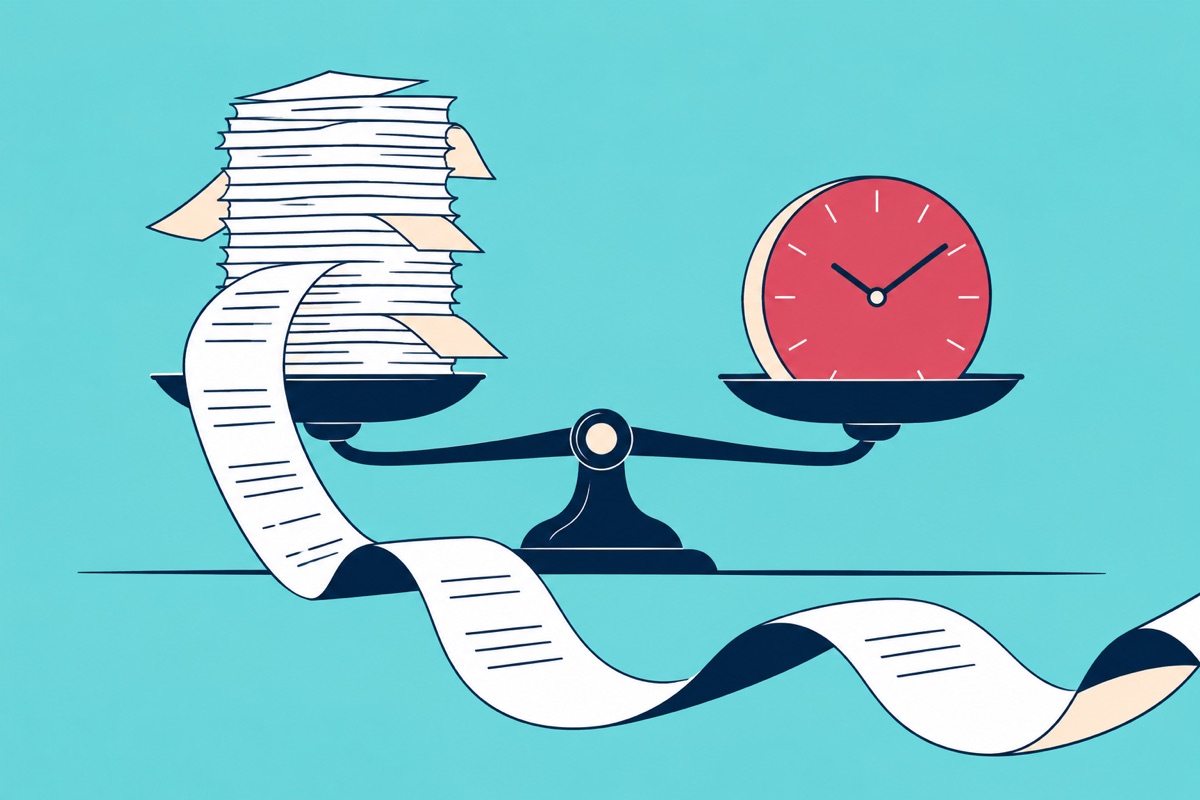
When a supplier sends an invoice, you owe them money until you pay. In your accounts that unpaid amount is a liability, and the total of all such unpaid invoices is your accounts payable balance. It sits opposite accounts receivable, which is the money customers owe you.
In Xero and QuickBooks Online you do not keep a separate AP ledger by hand. Each supplier invoice you enter becomes a bill, and the software adds up the unpaid ones. The wider record of purchases is often called the purchase ledger; see what a purchase ledger is.
The person doing this work might be a full-time AP clerk, a bookkeeper on a retainer or the owner on a Friday afternoon. The steps are the same.
The accounts payable process
- Receive. Invoices arrive by email, post, a supplier portal or a photo of a receipt. Decide one place they all go, otherwise some are missed.
- Capture. Read the supplier, invoice number, dates, amounts and tax off the document and enter them in your accounting software. This is where typing errors start.
- Check. Compare the invoice with what you ordered or received, and check it is not a duplicate. For larger purchases, three-way matching compares the purchase order, the delivery record and the invoice.
- Code. Choose the account (the nominal code) and the tax treatment for each cost. See what nominal codes are.
- Approve. Someone with authority agrees the invoice should be paid. In a small business that may be one person. Larger teams set limits by amount or supplier.
- Record. The approved invoice becomes a bill awaiting payment, dated so you can see what is due and when.
- Pay. Pay by bank transfer or another method, on or before the due date. Many businesses pay in a weekly or fortnightly run rather than one bill at a time.
- Reconcile. Match the payment on the bank statement to the bill, so the bill is closed and the bank balance in your books agrees with the bank.
Supplier credit notes and supplier statements feed back into steps 3 and 8; see what a credit note is and supplier statement reconciliation.
Worked example
This is an illustrative example, not a real supplier. Harbour Office Supplies sends invoice INV-4471 for £480.00 plus £96.00 VAT, total £576.00, due in 30 days.
You forward it to a shared inbox on the 3rd. On the 5th you enter it as a bill, coded to office costs. The office manager approves it on the 6th. It shows as awaiting payment until the payment run on the 28th, when you pay £576.00. The bank line appears the next day and you match it to the bill. The bill is now closed, with its payment attached.
Where each step happens in Xero
- Receive and capture. The Xero help suggests emailing a bill to your organisation or uploading it in Xero as the quick way to create one. Or select Purchases, then Bills, then New bill, and fill in the bill fields.
- Check. Xero warns you if the reference and contact name match an existing bill. The warning does not stop you saving, so read it.
- Code and record. Add the lines with their accounts and tax, then save the bill as a draft, send it for approval or approve it yourself. You can save a supplier's bill details as purchase defaults, and Xero fills them in next time.
- Approve. Bills waiting for sign-off sit on the Draft tab under Purchases, then Bills. Open one, review it and select Approve & next, or tick several and select Approve.
- Pay. Approved bills wait on the Awaiting payment tab. Xero also lets you add a planned payment date to each one, which helps when you pay in a weekly run (planned payment dates).
- Reconcile. Open the bank account from your homepage and, on the statement line, select Find & Match. Search for the bill, tick it and select Reconcile (Find & Match). Xero suggests matches from the name, invoice number, amount, reference or cheque number.
Where each step happens in QuickBooks Online
The menu names below come from QuickBooks help and can differ a little by region or plan. QuickBooks calls suppliers vendors.
- Receive and capture. On the Bills page, use Add bill, then Upload from computer, for PDF, JPEG, JPG, GIF or PNG files. Uploaded bills land in the For review tab so you can verify them (enter bills).
- Code and record. To type one in, select Create, then Bill. Choose the Vendor, the Terms, and enter the Bill date, Due date and Bill no. exactly as on the invoice. Fill in Category details, or Item details if you track products. A manually added bill appears on the Unpaid tab.
- Pay. From Expenses & Pay Bills, select Pay bills, choose the payment account and payment date, select the bills and Save (pay bills).
- Reconcile. Go to All apps, then Accounting, then Reconcile. Pick the account, enter the statement ending balance and date, and tick matching transactions until the Difference is zero (reconcile an account).
What goes wrong
- Duplicates. The same invoice arrives by email and post, and gets paid twice. Search by supplier and invoice number before you enter it.
- Payment reconciled to the wrong thing. In Xero, if a bill still shows Awaiting payment after you reconciled its payment, the statement line was probably matched to a spend money transaction instead of the bill. Xero explains how to fix it.
- Totals that do not add up. A typed line is wrong by a few pence or the tax is off. Compare the lines with the invoice total before you save.
- No owner for approvals. A bill waits because the approver is away. Name a backup.
Where automation fits
Steps 1, 2 and 4 are the repetitive ones, and that is where software helps. OCR reads the document, and you still key the result, code it and move it along. AP automation covers the work after the reading: routing, coding, approval and posting to the ledger.
Datamolino collects invoices from a folder's email address or uploads, captures the header and line details, reuses your saved coding rules, routes invoices for approval and exports the bill to Xero, QuickBooks Online or FreeAgent with the original attached. Read more on the invoice automation page, or how approvals work. You still pay and reconcile in your accounting software, exactly as above.
What is the difference between accounts payable and accounts receivable?
Accounts payable is money you owe to suppliers. Accounts receivable is money customers owe you. Both sit on the balance sheet, payable as a liability and receivable as an asset.