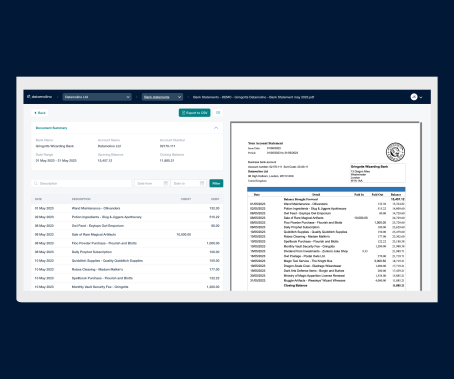
Datamolino converts PDF bank statements into a CSV or Excel file that any accounting platform can read. It works on digital PDFs from online banking and on scanned paper statements, and it works for any bank in the world. The output imports cleanly into Xero, QuickBooks, FreeAgent, Sage, MYOB, or any other accounting software that accepts a CSV bank statement. Two automatic checks validate the data before you export, so reconciliation does not break three weeks later when a missing row finally surfaces. For the broader product detail and pricing, the bank statement conversion page covers the full capability.
For every transaction on the statement, Datamolino captures:
- transaction date
- transaction description
- transaction amount for debit / credit
- running balance where the statement provides it
This is the column set that almost every accounting platform expects on a CSV bank statement import, so the export drops in without manual remapping in most cases.
Datamolino then validates the transaction data as follows:
- Amount Tally. We check if the debits and credits add up to the difference between opening and closing balance.
- Date Tally. We check if the transaction dates are within the range of start and end date of the bank statement.
These two checks catch the errors that matter most. A missed transaction on a torn page, a duplicated row from a re-scanned statement, a stray date from a header that got mis-read, all surface immediately rather than weeks later when the books refuse to balance.
You can read more detail about how Datamolino handles the conversion of bank statements into CSV in our helpdesk.
Why Use Datamolino for bank statement conversion?
- Convenience: Direct bank feeds aren’t always available, and manual data entry from PDF or scanned statements is time-consuming.
- Efficiency: Datamolino automates the conversion of bank statements into a format that’s easily imported into accounting software.
- Accuracy: Rule-based extraction with two automatic validation checks (amount tally and date tally) means errors are flagged before the data reaches your books, not after.
Steps to Convert Bank Statements into CSV or XLS using Datamolino:
1. Upload your bank statements into Datamolino
- Navigate to the “bank statements” subfolder in Datamolino
- Click import and choose the bank statement PDFs that you need to convert into CSV
- Datamolino supports scanned bank statements and electronic PDFs
- You do not need to specify up-front which bank has issued the statement. Datamolino will work with any bank statement out there.
- Multiple files at once is fine, and they can be a mix of digital PDFs and scans. There is no per-file page limit, so a 40-page annual statement uploads the same as a 2-page monthly one.
Navigate to the bank statements subfolder:
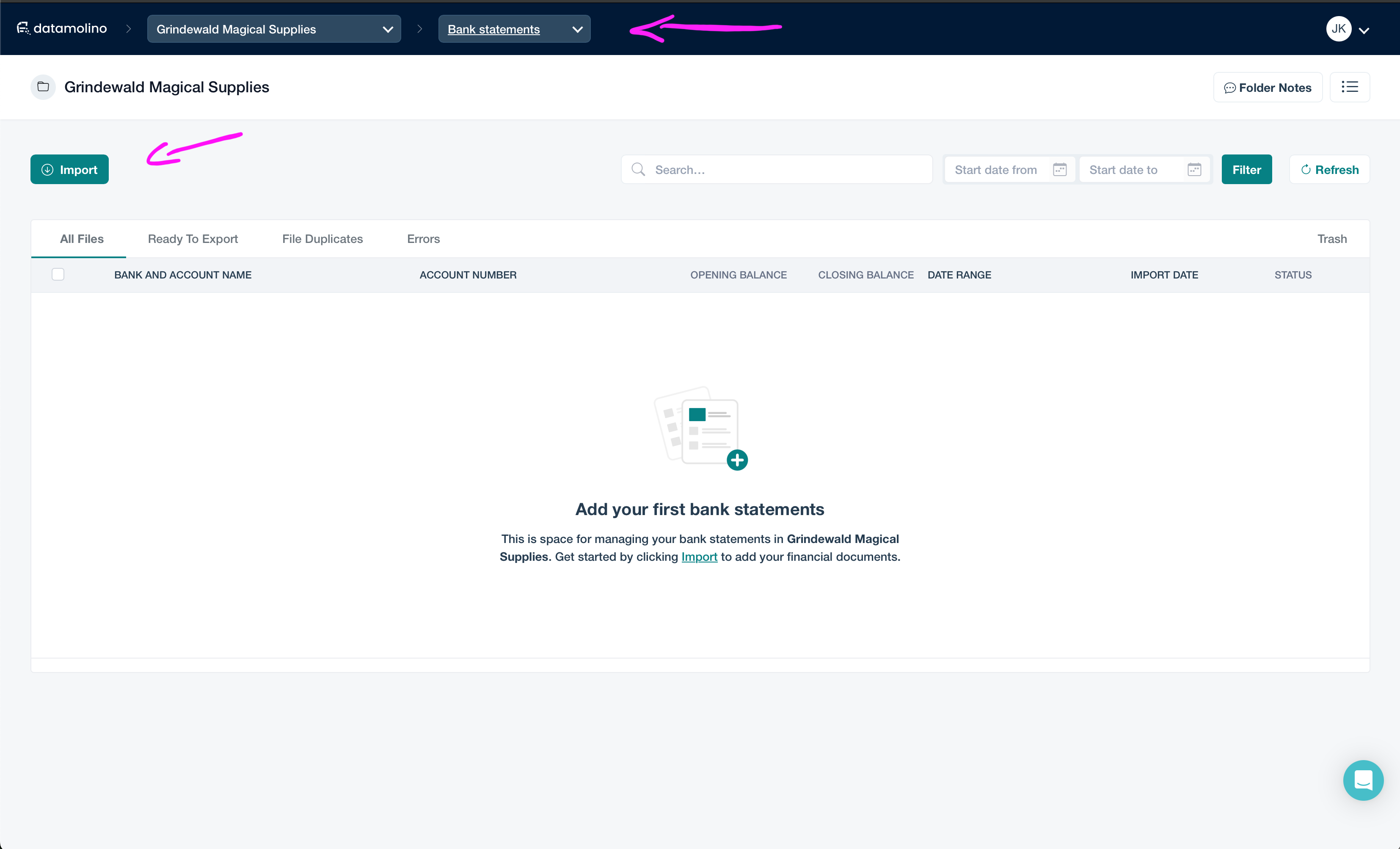
Navigate to the bank statements subfolder
Upload bank statement PDFs that you want to convert:

Upload bank statement PDFs that you want to process
2. Datamolino validates the extracted data
Datamolino validates if the debits and credits match the opening and closing balance of the bank statement and validates if all data is correct. If there is an issue with the file the system will let you know.
The system always gives you the transaction data that was captured. The error message will let you know if there was a problem with the original file. It can happen that the original statement PDF was missing pages or some data was not legible, common when handovers include scanned printouts that were photocopied a generation or two before reaching you.
When validation flags an issue, you still see the captured rows. You can review them against the source PDF, fix or supplement what is needed, and proceed to export. Nothing is held back behind a hard error.
Get a detailed error message if validation fails:

Get a detailed error message if validation fails
3. Datamolino automatically extracts all transaction lines from the PDF
Datamolino automatically extracts the bank statement details such as account name, account number and time period of the statement. It also extracts all tabular data from the statement such as transaction date, description, debits and credits.
The extraction is rule-based, not a generic guess. That matters for bank statements specifically, because a single misplaced decimal turns a £150 expense into a £15,000 one and you do not want that landing in the books unnoticed. Each row is reconstructed from the layout of the PDF, so columns stay aligned even when statements use unusual formats.
Your bank statement data is ready for export:

r bank statement data is ready for export
Document detail showing the extracted bank statement:

Document detail showing the extracted bank statement
4. Download the transaction data in CSV format
You can download the captured data in three simple ways:
- Download all data from a single bank statement.
- Filter the data inside a single bank statement and export only the filtered subset of data that you require.
- Merge multiple bank statements into one CSV export and optionally specify the time period (to include only relevant date range in the bulk export).
The merge option is the one that saves the most time during onboarding or year-end cleanup. If a client hands over twelve monthly PDFs, you can combine them into a single CSV in chronological order with running balances preserved across the period, then run one import instead of twelve.
One click export of bank statement data:

One click export of bank statement data
Filter data by text or date and export only relevant transactions:
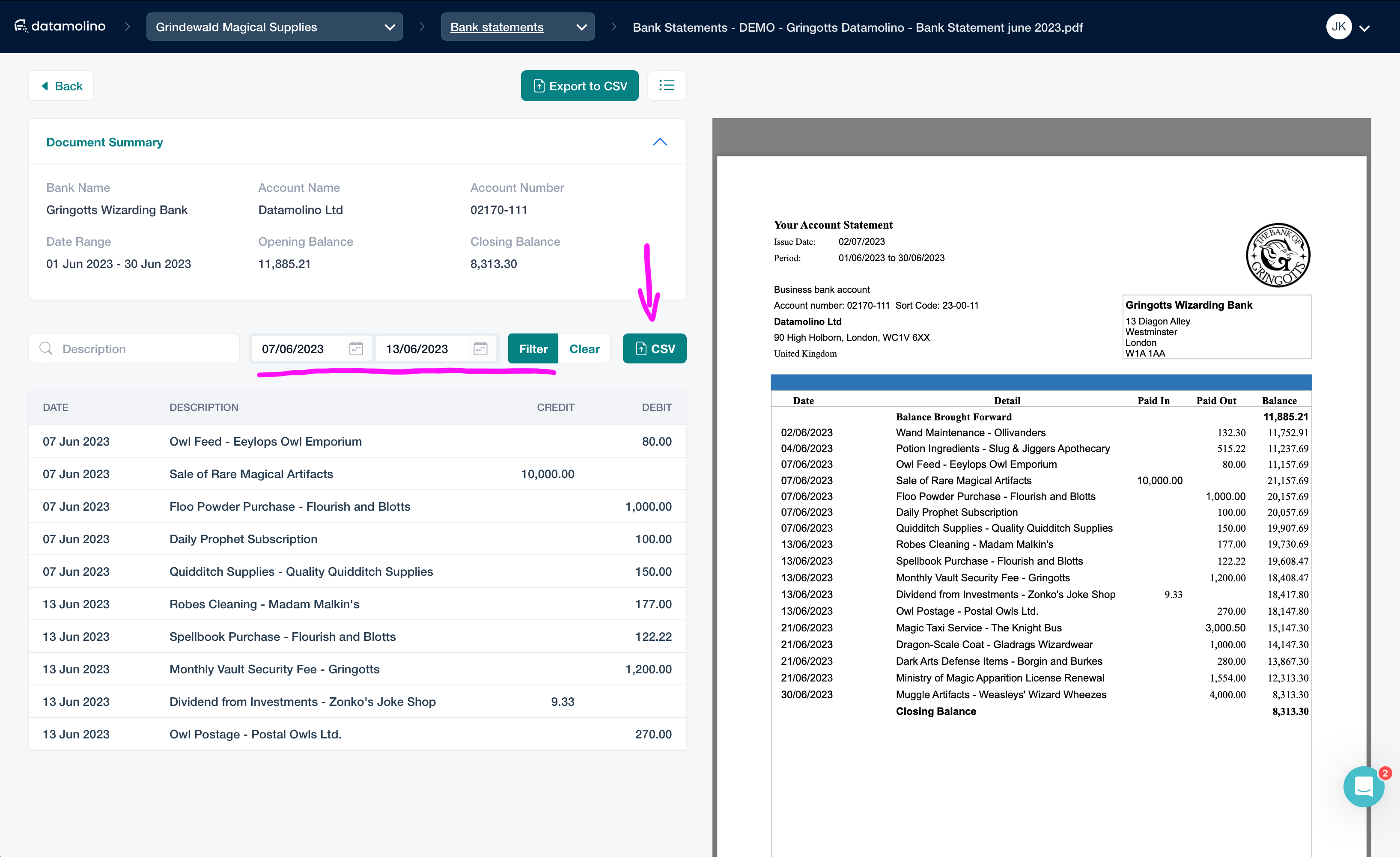
Filter data by text or date and export only relevant transactions
Bulk export multiple bank statements into a single CSV and choose date range:
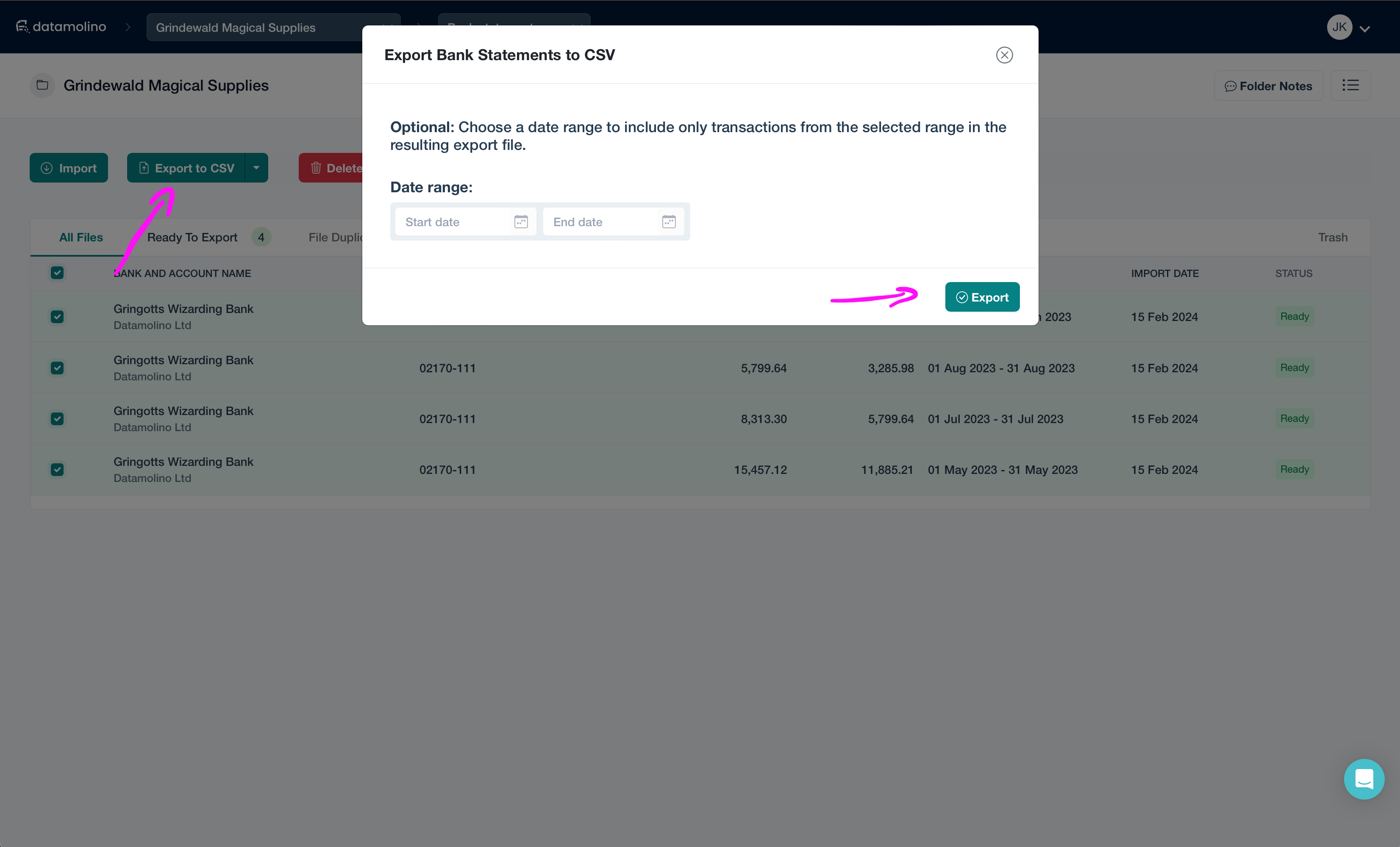
Bulk export multiple bank statements into one CSV and choose date range
5. Import the data into your accounting software
Follow the instructions of your accounting software on how to best import a CSV or Excel file into the bank statements section. If you need help or would like Datamolino to create a different file format for the resulting bank statement, please reach out to our support team.
Uploading bank statement transactions into Xero is very easy using this method. The same approach works for QuickBooks Online, FreeAgent, Sage, MYOB, and any other platform that supports a CSV or Excel bank statement import. Most accept the standard date / description / debit / credit / balance column structure that Datamolino exports by default.
If your software wants a slightly different column order, the export is editable in Excel before you import. Keep a copy of the original CSV in case you need to re-import later.
See our Bank Statement Conversion product page for more details and pricing.
Try Datamolino free, process 100 documents at no cost. Start your free trial
Frequently asked questions
Can I convert scanned bank statements?
Yes. Datamolino runs OCR on scanned PDFs and image-based statements before extraction, so scans of paper statements work the same as digital PDFs. Quality matters, a clean scan extracts faster and more accurately than a crumpled phone photo, but both will run through the system.
Which banks are supported?
Any bank, in any country. The extraction engine reads the layout of the statement rather than relying on a pre-built template, so banks that no other tool supports usually still work. If you have an unusual bank, send a sample through the trial and you will see the result on your own statement.
Can I merge multiple statements into one CSV?
Yes. Statements from the same account can be combined into a single CSV in chronological order, with running balances preserved across the merged period. This is the normal workflow for year-end onboarding when a client hands over twelve monthly PDFs.
Is the conversion validated?
Two checks run automatically on every statement. The amount tally confirms that opening balance plus debits and credits equals the closing balance, and the date tally confirms every transaction sits inside the statement period. Anything that does not reconcile gets flagged before export, so errors do not silently land in your books.