Split a PDF batch into separate invoices with Datamolino
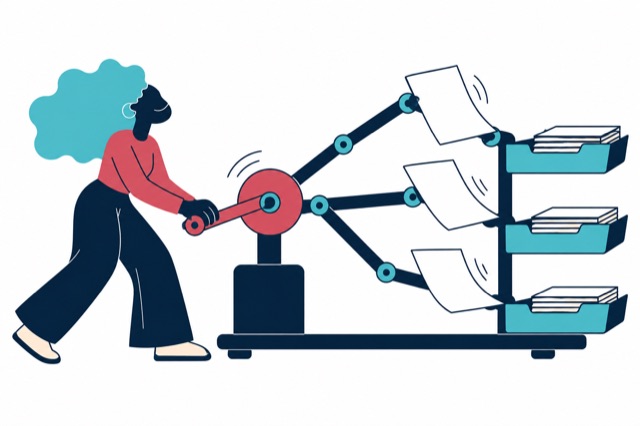
Choose Auto when the PDF contains several invoices. Datamolino separates the documents so a multi-page invoice can remain one item. Use Single invoice when the file contains one bill and its supporting pages. Check every resulting invoice before exporting the batch.
What does @split do in an email?
It requests the same automatic document splitting as Auto in web import. It does not mean one document per page.

Choose the mode for the file you have
| Your PDF contains | Choose |
|---|---|
| Several invoices, with each invoice's pages together | Auto. |
| One invoice across several pages | Single invoice. |
| One invoice followed by delivery notes or other supporting pages | Single invoice, to keep the evidence together. |
| One invoice whose total needs several accounting allocations | Use Bill Split after capture, not PDF splitting. |
Uploading several separate PDF files does not itself require splitting. If each file already contains one invoice, upload the files together without requesting Auto. The Help Centre splitting guide explains the distinction.
Check a mixed batch once before making it routine
Imagine a four-page scan. Page one is invoice A. Pages two and three are invoice B. Page four is invoice C. The intended result is three documents with page counts of one, two and one. A page-by-page split would incorrectly turn invoice B into two records.
Keep the pages of each invoice consecutive in the source file. After Auto processing, check that A, B and C are all present, that B has both its pages and that each record has the correct invoice reference and total. This is an illustrative review exercise; it is not a measured accuracy result.
When a bill is followed by supporting pages you need to retain, choose the single-document option. Do not use splitting as a way to decide which evidence the business should keep.
Set splitting during web or email import
For a web upload, click Import and select Auto before choosing or dropping the PDF files. For an email upload, add @split to the subject. Both request document splitting.
To keep a PDF intact, choose Single invoice in the web upload dialog or add @nosplit to the email subject. These options override a folder default set to Auto. The email routing guide also explains Purchases and Sales addresses.
Set a default for a folder that receives regular batches
- A folder administrator opens Folder Menu.
- Open Accounting & Automation, then Workflow.
- Set File splitting to Auto and save.
The setting applies to web and email imports in the folder. If the incoming files vary, it may be clearer to choose a mode per upload. Without an enabled folder setting or upload instruction, a multi-invoice PDF stays as one document.
Request a split after processing
If a batch arrived as one record, open the document menu, choose Repair fingerprint, select Split into individual transactions and send the request. Inspect the result before exporting. If records from the batch have already been exported, check the accounting system before exporting replacements.
Datamolino also documents a manual PDF splitting route in the Help Centre. Two separately uploaded documents cannot simply be merged into one Datamolino document, so prepare continuation pages together before upload.
Check file limits and the captured detail
The current document quality guide lists an 80-page limit for purchase PDFs. Bank statements have separate requirements, so do not use the invoice limit for a bank upload. A shorter, clearly ordered batch can also be easier for your team to review.
Once the invoices are separate, choose the accounting detail required inside each invoice. Line-item extraction reads the charges; PDF splitting separates documents. Invoice automation connects that capture with coding, review and export.
Is automatic splitting on by default?
No. Splitting is off unless enabled for the upload or folder. A folder administrator can set Auto as the default, and an individual upload can override it.